
We have all been there. You just bought a new streaming microphone, a high definition webcam, and a fancy RGB keyboard. You reach behind your computer case to plug everything in, only to realize you are out of slots. A wave of frustration hits, and you might even furiously type “how many usb ports does my motherboard have kys” into a search engine out of pure annoyance. You are not alone in this struggle. Connectivity anxiety is a real part of modern PC usage.
The digital ecosystem, the Universal Serial Bus (USB) is the lifeline of our computing experience. Whether you are a gamer, a content creator, or a data hoarder, knowing exactly how many connection points your system handles is crucial. This guide is your definitive resource. We will move beyond simply counting the holes on the back of your case. We will explore the hidden headers on the circuit board, the technical limitations of your chipset, and how to maximize your connectivity without bottlenecking your system.
How Many USB Ports Does My Motherboard Have?
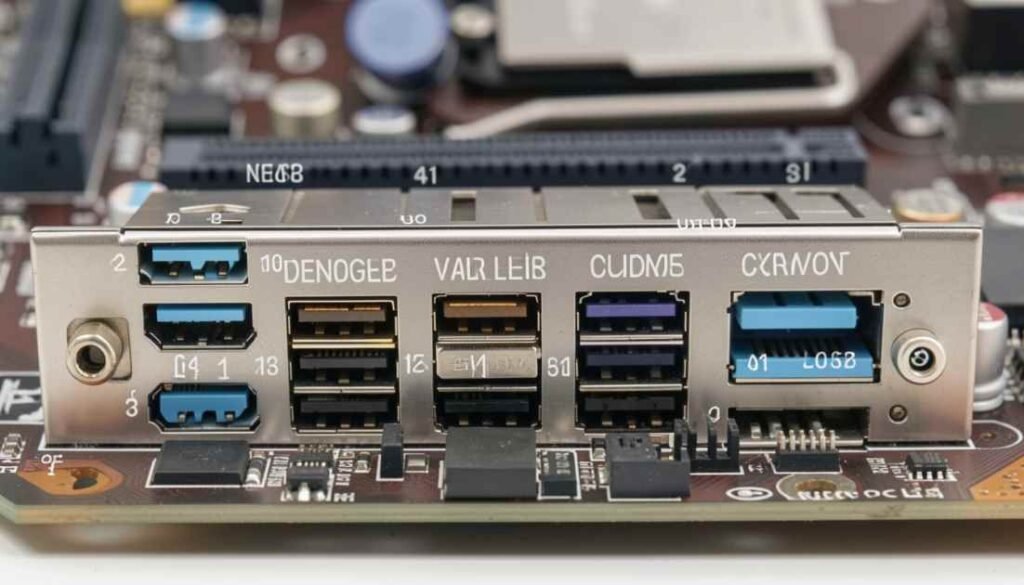
The question “how many usb ports does my motherboard have?” seems simple, but the answer is multifaceted. It depends entirely on the form factor and the chipset class of your specific board. To understand your total count, you must look at the motherboard as a hub with two distinct zones: the external Rear I/O and the internal headers.
The Form Factor Factor
The physical size of your motherboard dictates how much space is available for ports.
- ATX (Standard Size): These boards typically offer the most connectivity. You can expect 6 to 10 USB ports on the rear panel. They also feature ample room for multiple internal headers.
- Micro ATX (mATX): A middle ground option. These usually provide 4 to 8 rear ports. Manufacturers often cut a few ports to save space and cost.
- Mini ITX (Small Form Factor): Space is at a premium here. You might find only 4 to 6 ports on the back. However, high end Mini ITX boards often swap Type A ports for compact Type C ports to maximize utility in a small space.
The Chipset Influence
The chipset functions as the traffic manager for your motherboard.
- Budget Chipsets (H series, A series): These have fewer data lanes, meaning fewer USB controllers. You might be limited to 6 to 8 total ports system wide.
- Flagship Chipsets (Z series, X series): These are designed for enthusiasts. They can support upwards of 12 to 14 total USB ports by utilizing additional third party controllers to bypass standard limitations.
When you ask “how many usb ports does my motherboard have”, you are really asking about the sum of the physical ports you can see and the potential ports you can create via internal wiring.
Quick Ways to Identify Your Total USB Port Count
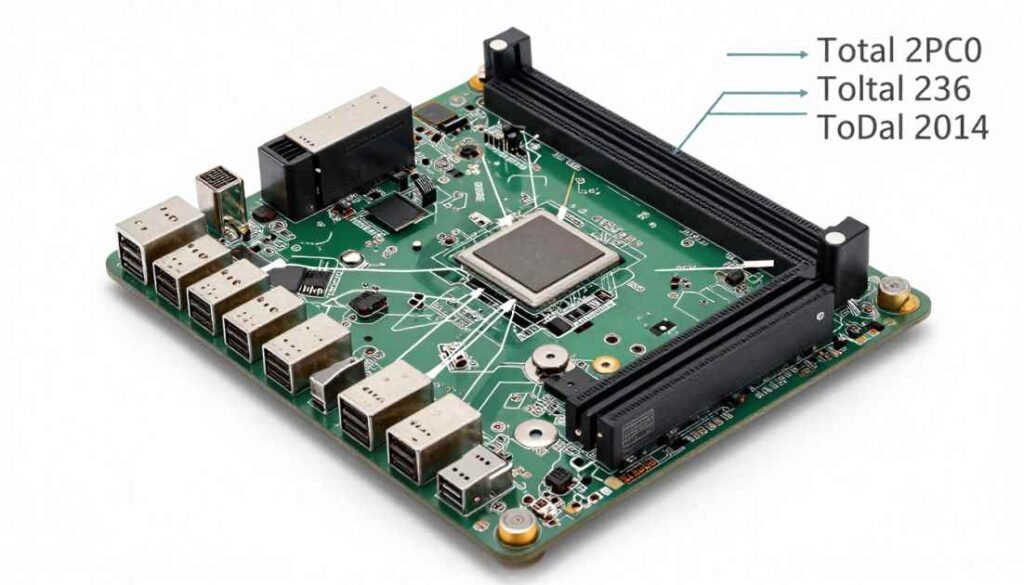
You do not always need complex software to figure this out. At times, your own vision is the most effective instrument. A physical inspection is the most reliable way to get an immediate answer.
Visual Inspection of the Rear I/O
- Positioning: Turn your PC tower around or tilt your laptop to expose the ports. Ensure you have good lighting, as black ports on a black shield can be hard to see.
- The Count: Tally up the rectangular slots (Type A) and the small oval slots (Type C).
- The Color Note: As you count, mentally note the colors. We will discuss later why a blue port is different from a black one, but for now, just get the total number.
The Case Panel Connection
Do not forget the front or top of your computer case.
- Most standard cases have 2 to 4 USB ports on the front panel.
- Trace the cables. These ports are not magical; they connect via cables to the motherboard’s internal headers. Therefore, they count towards the motherboard’s total supported USB count.
- If you have a customized build, you might also have a card reader installed. These also utilize USB bandwidth.
3 Ways to Check Your USB Count Without Opening Your PC
If your computer is wedged in a tight spot or you are providing remote tech support for a friend, a physical check might be impossible. Fortunately, Windows provides several tools to answer “how many usb ports does my motherboard have?” without moving a muscle.
1. Device Manager Analysis
Device Manager gives you a raw look at the drivers and controllers.
- Press the right mouse button on the Start icon and choose Device Manager from the menu.
- Scroll down to Universal Serial Bus controllers.
- Here, you will see a list of “Root Hubs” and “Host Controllers.”
- Tip: This list can be confusing because one physical controller often manages multiple physical ports. However, seeing “USB 3.1” or “USB 3.2” entries confirms that your board supports high speed connections.
2. System Information Utility
This method is cleaner and provides a text based summary.
- Utilize the Windows Key together with R on your keyboard.
- Type msinfo32 and press Enter.
- Navigate through Components then USB.
- This window displays the specific protocols active on your system. While it may not give you a simple number like “10 Ports,” it tells you exactly what kind of USB architecture is running.
3. The Model Number Lookup (The Expert Method)
This is the most accurate method and effectively an “how many usb ports does my motherboard have ai” approach—using smart search tactics to get data.
- Open msinfo32 again and look for the line labeled “BaseBoard Product”.
- Copy that model name (e.g., “MSI MAG B550 Tomahawk”).
- Paste it into a Google search followed by the word “specs”.
- Open the official manufacturer page.
- Look for the “Detail” or “Specification” tab. There will be a section strictly for USB that reads something like: “Rear USB: 4x USB 3.2, 2x USB 2.0 / Internal: 1x USB Type C, 2x USB 2.0”. This is your definitive answer.
Decoding the Colors: What Kind of USB Ports Do You Have?
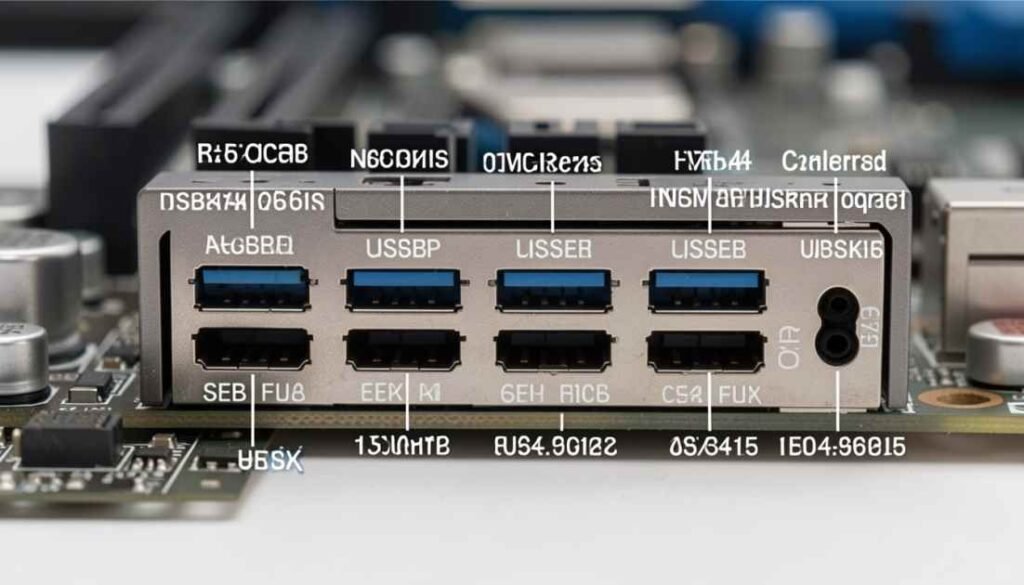
Speed matters. Plugging a modern external SSD into an old port is like driving a Ferrari in a school zone. Manufacturers use a color coding standard to help users identify capabilities at a glance.
Use this table to identify what you have:
| Port Color | Standard Name | Maximum Theoretical Speed | Ideal Device Usage |
| Black | USB 2.0 | 480 Mbps | Mouse, Keyboard, Printer, Bluetooth Dongles |
| Blue | USB 3.0 / 3.1 Gen 1 | 5 Gbps | Flash Drives, 1080p Webcams, Microphones |
| Teal / Blue | USB 3.1 Gen 2 | 10 Gbps | External NVMe SSDs, 4K Capture Cards |
| Red | USB 3.2 Gen 2 | 10 Gbps (High Power) | Fast Charging Phones, High Speed Data Transfer |
| Yellow / Orange | Sleep and Charge | Varies | Charging devices while the PC is turned off |
| White | Legacy / BIOS | Low Speed | BIOS Updates, Firmware Flashing |
Expert Tip: Always reserve your Black ports for your mouse and keyboard. These peripherals transfer very little data. If you plug a mouse into a Red USB 3.2 port, you are wasting that port’s high speed potential on a low speed device.
Understanding Internal USB Headers (The “Hidden” Ports)
When you read a motherboard box that claims “16 USB Ports,” but you only see 8 on the back, the manufacturer is counting the Internal Headers. These are groups of metal pins located on the motherboard PCB (Printed Circuit Board) inside the case.
USB 2.0 Headers (9 Pin)
These look like a block of 9 pins arranged in two rows, with one pin missing in the corner.
- Function: Each header can support two physical USB 2.0 ports.
- Modern Usage: While older cases used these for front ports, modern PCs use them for internal smart devices. Your “All In One” (AIO) liquid cooler, RGB fan controller, and smart power supply likely plug into these headers to communicate with software.
USB 3.0 / 3.2 Gen 1 Headers (19 Pin)
This is a larger, rectangular connector with a plastic shroud, usually located near the 24 pin power connector on the right side of the board.
- Function: Supports two USB 3.0 ports.
- Modern Usage: This is the standard connector for the blue USB ports found on the front of almost every modern PC case.
USB Type C Header (Key A or Type E)
This is a small, metallic, oval shaped connector.
- Function: Supports one high speed USB Type C port.
- Modern Usage: Found on mid range to high end boards, this connects to the USB C port on the front panel of premium cases, allowing for fast charging and high speed data transfer from the front of your desk.
The Technical Side: Chipset Lanes and Bandwidth Sharing
This section delves into technical architecture. Your computer has a limited number of “lanes” available to transport data. These lanes are provided by the CPU and the Motherboard Chipset.
The Bottleneck Reality
If you were to plug high speed hard drives into every single USB port and try to copy files to all of them simultaneously, your speed would drop drastically. This is because all those USB ports typically share a single “pipe” back to the processor (the DMI Bus).
- Dedicated Bandwidth: Usually, the USB ports controlled directly by the CPU (often the red ones on the back) have the most reliable speed.
- Shared Bandwidth: Ports controlled by the chipset share bandwidth with other features like SATA ports (hard drives) or Ethernet.
Disappearing Ports
On some motherboards, using certain ports disables others. This is called Lane Sharing.
- Example: If you plug an ultra fast M.2 SSD into the second slot on your motherboard, it might automatically disable two of your SATA ports or a specific USB header.
- Always consult your motherboard manual’s “Expansion Slot” section to check for these conflicts. This ensures you do not wonder why a port suddenly stopped working.
Running Out of Ports? How to Expand Your USB Ecosystem
If you have completed your audit and the answer to “how many usb ports does my motherboard have” is simply “not enough,” you have options. You do not need to buy a new computer. You can expand your current ecosystem.
1. PCIe Expansion Cards (The Professional Choice)
This is the most stable solution. You install a card into one of the horizontal PCIe slots below your graphics card.
- Benefit: It adds a new dedicated controller. This means you are adding new bandwidth, not just splitting existing bandwidth.
- Result: You get 4 to 7 extra high speed ports on the back of your PC.
2. Powered External Hubs
Avoid the cheap, unpowered dongles that dangle from your laptop. Look for a Powered USB Hub that comes with its own AC wall adapter.
- Benefit: Since it draws power from the wall, it can support power hungry devices like external mechanical hard drives without disconnecting.
- Result: Transforms one port into seven or ten. Ideally, plug this hub into a rear USB 3.0 (Blue) or Red port for maximum throughput.
3. Internal Header Splitters
If you are building a PC with lots of RGB lighting, you might run out of internal USB 2.0 headers.
- Solution: You can buy an internal USB hub. This is a small magnetic box that sits inside your case. It connects to one motherboard header and splits it into three or four, allowing you to connect your cooler, fan controller, and lighting node simultaneously.
Conclusion
Understanding your motherboard’s connectivity is about more than just convenience; it is about maximizing the investment you made in your hardware. Whether you are troubleshooting a dead port, planning a massive workstation upgrade, or simply trying to find a place to plug in your phone charger, knowledge is power.
We have learned that the answer to “how many usb ports does my motherboard have” involves checking the rear I/O, counting the internal headers, and understanding the color coded protocols. By decoding the colors (Black for peripherals, Blue for data, Red for speed) and utilizing the correct expansion methods, you can ensure your digital life remains connected and clutter free. Do not let a lack of ports limit your creativity or productivity. Map your motherboard today and take full control of your system’s potential.
FAQs
What is the total number of USB ports available on my motherboard AI?
While there is no “AI” specific number of ports, motherboards marketed for AI workflows or heavy data science usually feature high bandwidth connectivity. These boards prioritize Thunderbolt 4 and USB 4.0 ports to facilitate massive data transfers between external GPU clusters and high speed storage arrays.
Is it normal to search “how many usb ports does my motherboard have kys”?
We see this search query appear in analytics surprisingly often. It usually stems from extreme user frustration during PC building or troubleshooting when ports are dead or insufficient. If you are feeling this level of tech rage, take a step back. Usually, the solution is a simple $20 PCIe expansion card or a powered hub, not a complete meltdown.
Can I upgrade my USB 2.0 ports to 3.0?
No, you cannot change the physical port speed via software. A USB 2.0 port is physically wired for slower speeds. However, you can add new USB 3.0 ports to your system by installing a PCIe expansion card, provided you have a free slot on your motherboard.
Do the ports on my monitor count?
Technically, no. The ports on your monitor act as a “hub.” You must run a USB cable from your monitor to one of the ports on your motherboard for them to work. They are extensions of your motherboard, not independent additions.
Why does my “how many usb ports does my motherboard have meme” search show cable messes?
The internet culture around PC building often mocks poor cable management. The “meme” aspect usually refers to photos of users daisy chaining five different USB hubs together, creating a fire hazard and a data bottleneck, rather than just buying a motherboard with enough ports in the first place.
How do I enable the USB C port on my case?
If the USB C port on your case is not working, it is likely not plugged in. You need to find the cable coming from the front panel (usually a thick cable with a distinct oval connector) and plug it into the USB Type E or Key A header on your motherboard. If your motherboard lacks this specific header, the port will remain inactive unless you buy an adapter card.