
The world of PC aesthetics has shifted from simple colored lights to complex, synchronized ecosystems. At the heart of this movement for many enthusiasts is gigabyte rgb fusion, a dedicated suite designed to manage every LED within your system.
A successful setup requires more than just plugging in components. It demands a synergy between hardware capabilities and software control. This guide focuses on maximizing your lighting potential while avoiding the common pitfalls that many users face during their initial build. By the end of this article, you will have the knowledge to master your Aorus lighting setup and maintain a perfectly synced environment.
What is Gigabyte RGB Fusion 2.0?
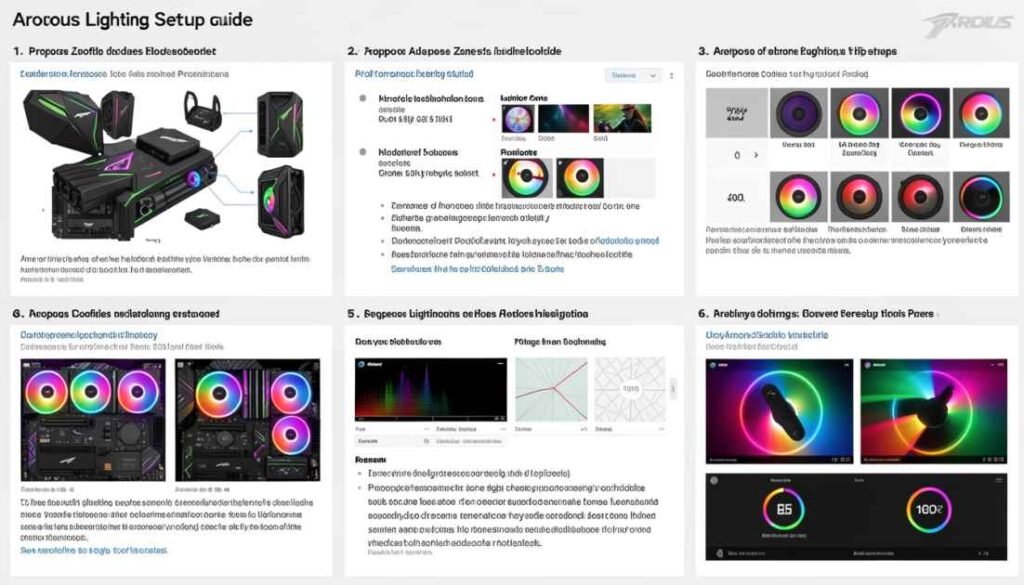
The latest iteration of this ecosystem is known as gigabyte rgb fusion 2.0. It serves as the bridge between your motherboard and every other compatible component in your case. This version was built to provide a more intuitive interface than its predecessors, allowing for one click synchronization across a wide variety of hardware.
- Integrated Interface: A single dashboard to view all detected devices.
- Expansion Support: Controls not just Gigabyte parts but also certified third party gear.
- Sync Capabilities: Offers the ability to make your GPU, RAM, and Case fans pulse in unison.
- Custom Profiles: Users can save different lighting themes for different moods or games.
When you perform a gigabyte rgb fusion download, you are installing a platform that communicates directly with the lighting controllers on your motherboard. This allows for low level control that is more stable than generic third party tools.
How RGB Fusion Controls Your Hardware
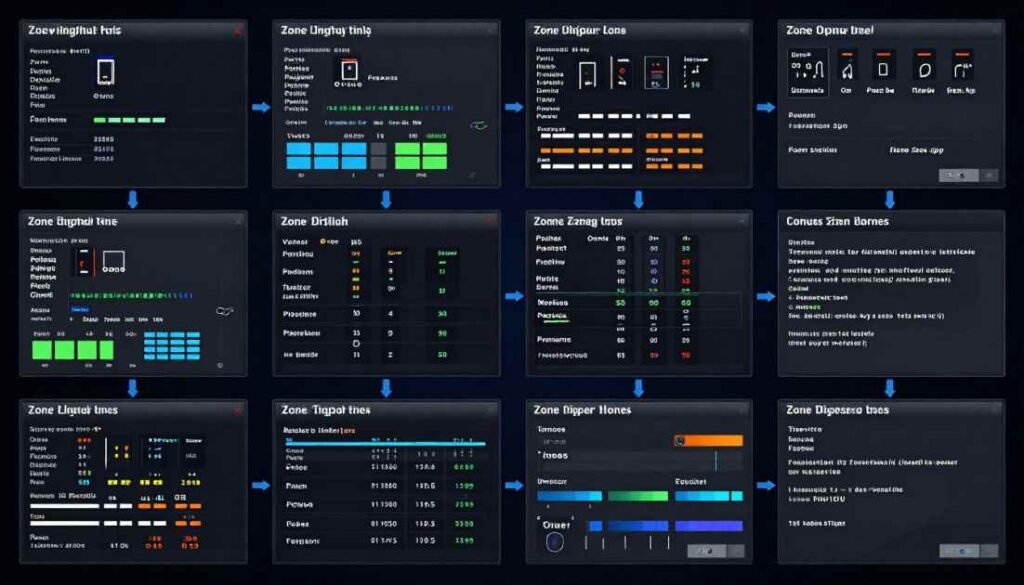
The magic behind the gigabyte rgb fusion software lies in its communication with the System Management Bus (SMBus) and dedicated onboard microcontrollers. When you select a color on your screen, the software sends a signal to these controllers, which then adjust the voltage or digital data sent to the LED strips and components.
Hardware Communication Layers
- Software Layer: The user interface where you choose colors and patterns.
- Driver Layer: Translates your choices into machine code the hardware understands.
- Controller Layer: Physical chips on the motherboard that regulate power to the LEDs.
- Peripheral Layer: The actual lights on your RAM, GPU, and fans.
This multi-layered approach ensures that the lighting effects remain consistent even when the CPU is under heavy load. The software is designed to prioritize these signals so that your lighting doesn’t “lag” during intense gaming sessions.
Compatibility: Supported Aorus and Third Party Gear
One of the strongest selling points of gigabyte rgb fusion is its broad compatibility. While it works best with Aorus branded products, it also supports a massive list of industry partners. This is crucial for builders who want to mix and match parts from different manufacturers.
Compatibility Breakdown
| Category | Supported Brands/Series | Connection Type |
| Motherboards | Aorus Z790, B650, X670, and older series | Onboard / Headers |
| Graphics Cards | Aorus Master, Gaming OC, Eagle Series | Internal PCIe |
| Memory (RAM) | Aorus RGB, Corsair Vengeance, G.Skill Trident Z | SMBus |
| Storage (SSD) | Aorus RGB NVMe, Western Digital Black | M.2 Slot |
| Peripherals | Aorus Mice, Keyboards, and Headsets | USB |
| Third Party | Cooler Master, Thermaltake, BitFenix | RGB/ARGB Headers |
Key Compatibility Features
- Aorus Ecosystem: Provides the deepest level of control, including LCD screen customization on certain GPUs.
- Certified Partners: Look for the “RGB Fusion Ready” logo on product packaging to ensure day one support.
- Legacy Support: Older 12V RGB devices are still supported alongside modern ARGB hardware.
UI Guide: Basic vs. Advanced Customization
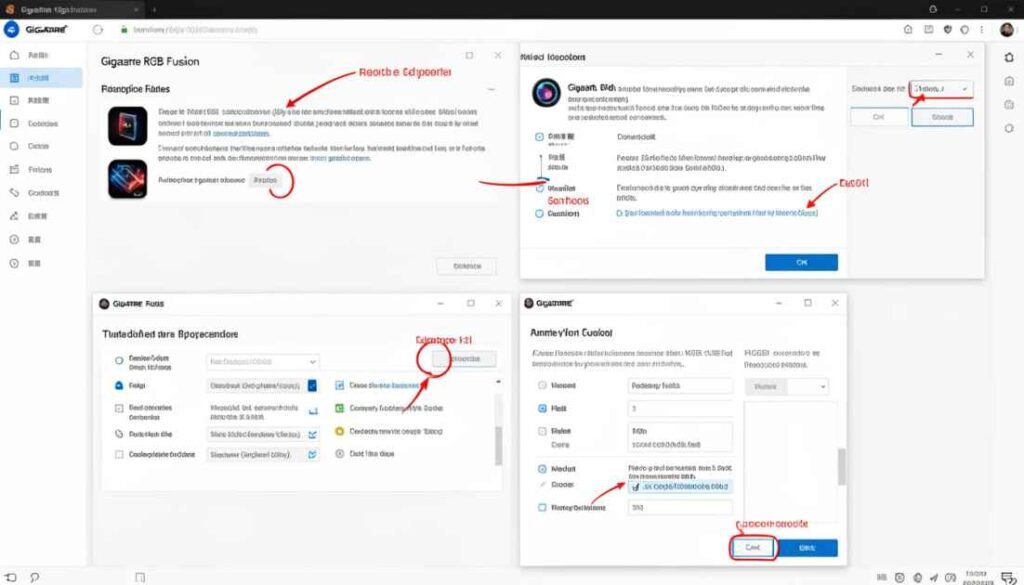
Once you have finished the gigabyte rgb fusion download, you will encounter two primary modes within the app. Understanding the difference between Basic and Advanced mode is the first step toward a professional looking build.
Basic Mode: The Quick Fix
Basic mode is designed for users who want a great look without spending hours on settings. It offers global presets that apply to every detected device at once.
- Static: A solid color of your choice.
- Pulse: A slow “breathing” effect.
- Flash: Quick bursts of light.
- Color Cycle: Automatically rotates through the entire rainbow.
Advanced Mode: Precision Control
For the “hardcore” enthusiast, Advanced mode allows you to click on individual components or even specific zones on a motherboard.
- Zone Lighting: Set the I/O shroud to one color and the chipset heatsink to another.
- Individual LED Control: On supported ARGB strips, you can set a different color for every single bulb.
- Timing Adjustments: Change the speed and duration of transitions for custom patterns.
- Calibration: If your “Red” looks like “Orange,” you can recalibrate the pin definitions within the software.
Dynamic Lighting: Syncing Music and Game Effects
The gigabyte rgb fusion software goes beyond static colors. It can turn your PC into an interactive part of your entertainment setup.
Interactive Modes
- Music Mode: The lights dance in sync with the audio coming from your speakers or headset. You can choose between “Pulse” or “Flash” based on the beat.
- Game Sync: Certain supported titles can “take over” your lighting. For example, your keyboard might flash red when your health is low or green when you gain a level.
- Intelligent Mode: Syncs colors to hardware stats like CPU temperature. Your PC can glow green when cool and turn bright red when it gets too hot.
These dynamic modes provide a level of immersion that makes your gaming setup feel alive. It transforms the PC from a tool into a central part of the gaming experience.
The Transition to Gigabyte Control Center (GCC)
In recent years, Gigabyte has moved toward a unified platform called the Gigabyte Control Center or GCC. If you are using a very modern motherboard, such as an Intel Z790 or AMD X670, you may find that the standalone gigabyte rgb fusion 2.0 installer is being replaced by GCC.
What is GCC?
GCC is an “all in one” utility that manages fan speeds, overclocking, driver updates, and lighting. Within GCC, you will find a dedicated tab for RGB Fusion.
- Unified Updates: Drivers and lighting software are updated in one place.
- Less Bloat: You only download the modules you need for your specific hardware.
- Improved Stability: The underlying engine is more modern, leading to fewer instances of the software crashing.
If you are building a new system today, it is highly recommended to use GCC instead of the older standalone app for better compatibility with Windows 11.
Technical Setup: 12V RGB vs. 5V ARGB Headers
A common mistake that leads to hardware damage is confusing the two types of lighting headers found on Gigabyte motherboards.
12V RGB Headers (4 Pin)
These are the traditional headers. Every LED on a strip connected here must be the same color at the same time. They are labeled as RGB or RGBW on your board.
5V ARGB Headers (3 Pin)
Also known as Digital or Addressable RGB, these allow each LED to be a different color. This is the method by which “Rainbow Wave” effects are produced. These headers have a gap between the pins to prevent you from plugging in the wrong cable.
Header Comparison Table
| Feature | 12V RGB | 5V ARGB |
| Pin Count | 4 Pins | 3 Pins (4 pin layout with gap) |
| Voltage | 12 Volts | 5 Volts |
| Control Type | Analog (Global Color) | Digital (Per LED Control) |
| Risk | Plugging 5V into 12V will burn out LEDs | Plugging 12V into 5V may not work or dim LEDs |
Setup Best Practices
- Consult the Manual: Always check your motherboard map before plugging in a strip.
- Check the Arrow: Most cables have a small arrow indicating Pin 1 (Voltage). Align this with the +12V or +5V mark on the board.
- Use Hubs for Many Fans: If you have more than three fans, use a powered ARGB hub to avoid overloading the motherboard header.
Troubleshooting: Fixing Common Sync and Detection Errors
The most frustrating experience is gigabyte rgb fusion not working when you have just finished a beautiful build. Detection issues are the most common complaint among users.
Tier 1: Basic Fixes
- Run as Administrator: Right click the software icon and select “Run as Administrator.” This gives it the permissions needed to talk to the hardware.
- Reinstall the App: Uninstall the current version, restart your PC, and perform a fresh gigabyte rgb fusion download from the official support page.
- Check Connections: Ensure the RGB cables are seated firmly. A loose 5V data pin can cause flickering or “no device detected” errors.
Tier 2: Software Conflicts
If you have other lighting software like Corsair iCUE, NZXT CAM, or ASUS Aura Sync installed, they may be fighting for control of the SMBus.
- Disable Competitors: Close other RGB apps in the Task Manager to see if Fusion starts working.
- Clean Boot: Start Windows with only essential services to identify if a background process is blocking the lighting controller.
Tier 3: The “SelLedV2.exe” Trick
Many users have found that the main UI fails to open, but a background executable works perfectly. Navigate to the installation folder (usually in Program Files x86) and look for a file named SelLedV2.exe. Running this directly often bypasses UI glitches and allows you to change your colors.
Performance Check: Managing CPU and RAM Overhead
A common concern with gigabyte rgb fusion software is its impact on system performance. Because the software needs to constantly update the “state” of your lights, it does use some system resources.
CPU Usage
On older or lower end CPUs, the background process for RGB Fusion can sometimes use 1 to 3 percent of your processing power. While this is negligible for most, competitive gamers might want to set their lighting and then close the app entirely.
SPD Write Protection
A technical issue discovered with DDR5 memory involves “SPD Write Protection.” Some Gigabyte BIOS versions block software from writing to the memory’s lighting chip to protect the firmware. If your RAM is not showing up in the app, you may need to enter your BIOS and enable “SPD Write” or “SPD Enhance” under the memory settings.
Optimization Tips
- Update BIOS: Modern BIOS updates often include fixes for lighting controller stability.
- Static Colors: Using a static color instead of a complex “Music Sync” reduces the number of instructions sent to the controller every second.
Open Source Alternatives: Beyond the Official App
If you find that the official software is too buggy or lacks the features you want, there are community driven alternatives that support Gigabyte hardware.
OpenRGB
This is a lightweight, open source tool designed to replace every manufacturer’s software. It can control your Gigabyte motherboard alongside your Razer mouse and Corsair RAM in one window.
- Pros: Very low CPU usage; supports almost all brands.
- Cons: Higher learning curve; interface is not as “pretty” as Aorus lighting.
SignalRGB
SignalRGB is a powerful app that focuses on complex “canvas” effects. It treats your entire PC like a screen and “projects” patterns across all your LEDs.
- Pros: Best looking effects in the industry; great game integrations.
- Cons: Requires a subscription for some advanced features like fan control.
Using these alternatives is a great way to fix the gigabyte rgb fusion not working issue if the official software refuses to cooperate with your specific hardware combination.
Conclusion
Mastering the gigabyte rgb fusion software is the final step in perfecting your gaming rig. From the initial gigabyte rgb fusion download to the complex task of syncing third party peripherals, the journey requires a mix of technical knowledge and creative flair. While the software can sometimes be temperamental, following the troubleshooting steps and understanding the difference between 12V and 5V headers will solve the majority of problems.
Your Aorus lighting setup is more than just “eye candy;” it is a reflection of your dedication to the craft of PC building. Whether you choose to stay with the official ecosystem or venture into open source alternatives, the goal remains the same: a stunning, synchronized, and stable gaming environment.
Frequently Asked Questions
Why is my RAM not syncing with Gigabyte RGB Fusion?
This is often caused by a conflict with other RGB software or the BIOS “SPD Write Protection” setting. Ensure no other lighting apps are running and check your BIOS settings to allow software control of the memory modules.
Where can I find the official Gigabyte RGB Fusion download?
You should always download the software directly from the Gigabyte official website or the specific support page for your motherboard model. This ensures you get the latest version compatible with your hardware.
Is RGB Fusion compatible with Windows 11?
Yes, gigabyte rgb fusion 2.0 and the newer Gigabyte Control Center (GCC) are fully compatible with Windows 11. If you encounter issues, try running the installer in compatibility mode for Windows 10 or ensure your motherboard drivers are up to date.
Can I control my Case fans with this software?
Yes, as long as your fans are plugged into the RGB or ARGB headers on your Gigabyte motherboard. If the fans use a proprietary controller that only connects via USB, you may need the fan manufacturer’s software instead.
What should I do if RGB Fusion crashes on startup?
Try deleting the configuration files located in the AppData folder of your Windows user profile. This resets the app to its factory state and often fixes startup crashes caused by corrupt profile data.